





Start the agent.
Answer on the go.
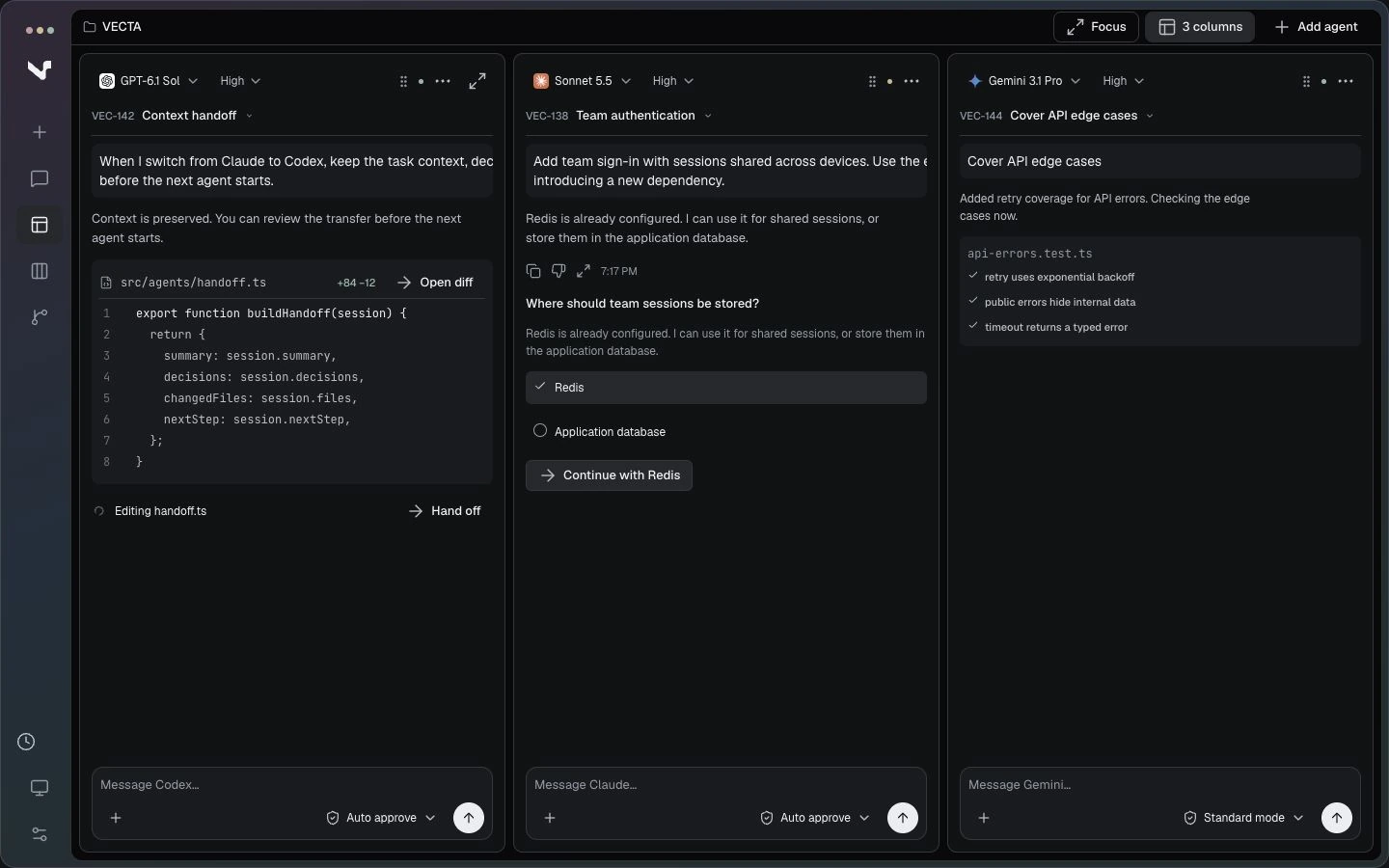
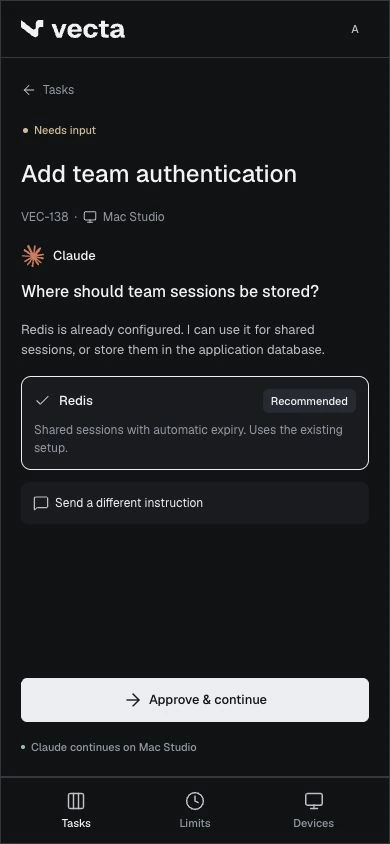
Run  Claude Code, Codex or Gemini on your computer. When an agent needs you, answer from your phone and review every change.



Windows

Mac OS

Linux

Web

Mobile
Every task,
start to finish
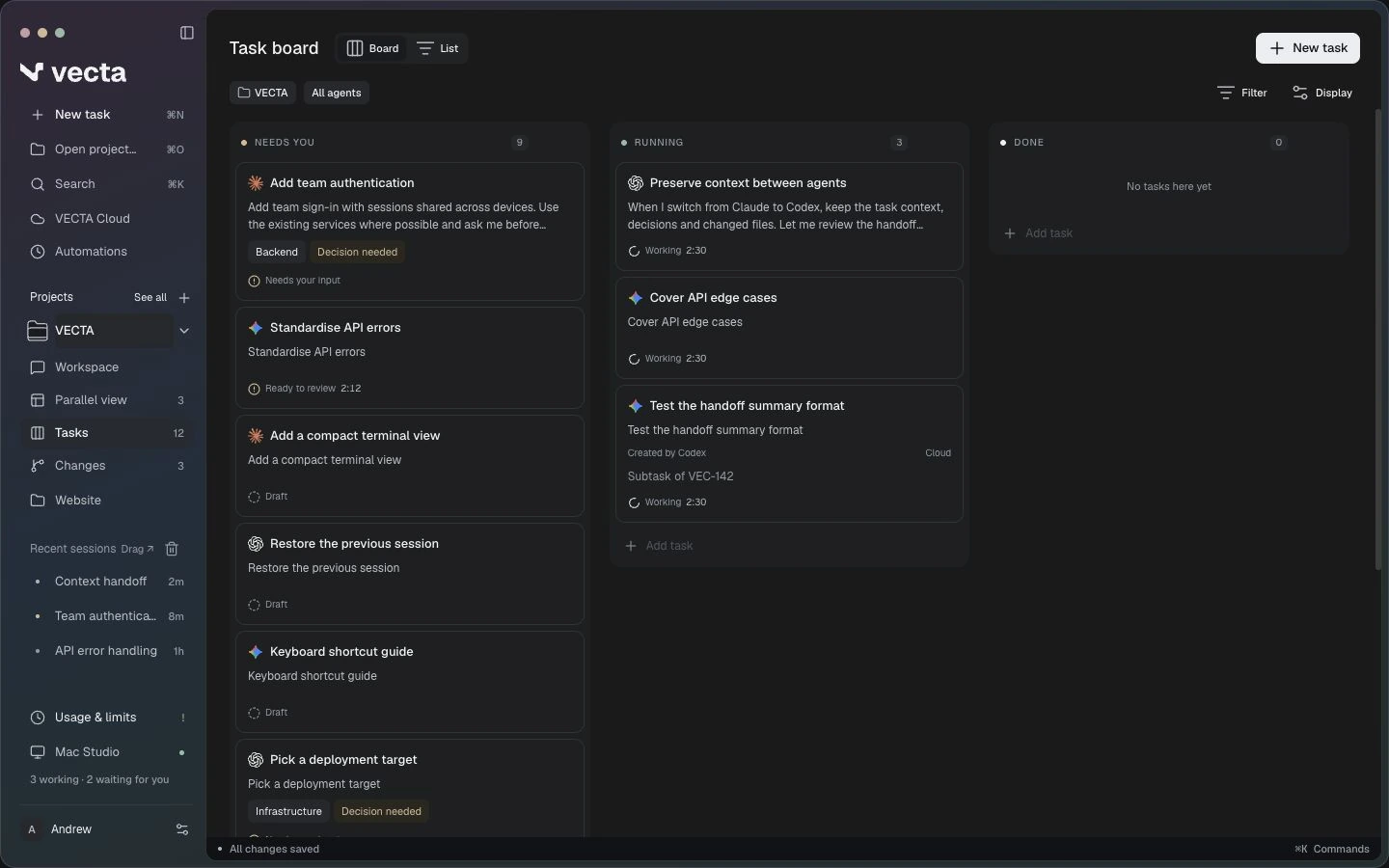
The project stays together
Instructions, tasks and conversations live in one workspace. Pick up any task on desktop or web without rebuilding the context.
Explore Projects
















Claude Code
claude-connect-5
Invitation handling is ready for parent review. Workspace roles are preserved; expired links are rejected. The recorded checks pass.

8 files changed
+284
+284
A team of agents. A clear owner.
The parent agent splits the work into focused assignments and brings the results back.
You keep control of permissions and approvals.
Explore task controls

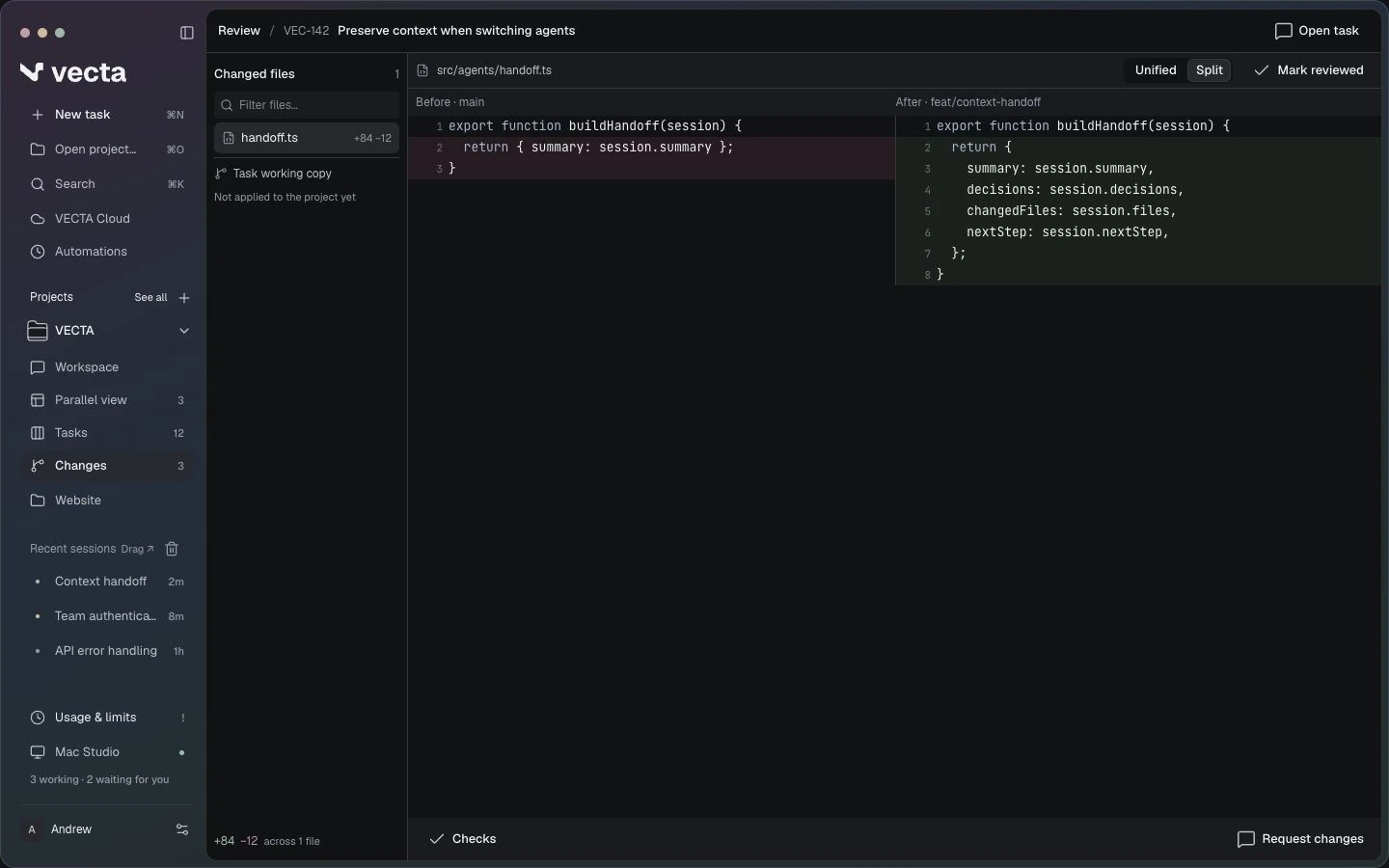
Read the changes. Then decide
See the diff and the agent’s checks next to the conversation. Accept the changes or ask for another pass in the same task
Read about task boundaries


Claude Code

Codex

Gemini

Qwen Code

KIMI
OpenCode

Connect tools you use
Your provider account and its usage limits stay yours
Explore supported agents






Vecta Cloud
Choose Qwen or DeepSeek without a personal model key. Let it work on files on your connected computer.
Every feature,
without limits for free









Unlimited projects and tasks
All supported agent connections
Desktop and web access



Your agent and its account
Codex, Claude Code or another agent, signed in with your own account or key. Provider charges and limits still apply.


A computer to run it
macOS, Windows or Linux.
It needs to stay online while an agent works on it

Or no key at all
VECTA Cloud is a free preview with usage allowances
How Cloud credits work
VECTA Cloud Founding Builders
Includes Cloud credits for supported models.
Connect your own Claude Code, Codex or API accounts anytime.

—
/
—
seats left


+—
in credits
Invite active builders
Details in your account
+—
in credits
Your seat
Details in your account
+—
in credits
Finish your first task
On your computer or in VECTA Cloud
+—
in credits each
Invite a builder
Details in your account
+—
in credits each
Share a task receipt
Details in your account

An invite counts once that person confirms their email, connects a computer and finishes a task.

Cloud usage allowances apply

Pro gives you room to connect more computers

Rewards are paid while the Founding credit pool lasts. Some are checked by the VECTA team first
A few quick answers
Something else on your mind?Ask the community
Is Vecta free?
Yes. Free is currently our only plan: all VECTA features, unlimited projects and tasks. Your AI provider has its own pricing and usage limits.

Which agents can I use?
Connect Claude Code, Codex, Gemini, Qwen Code, Kimi Code or OpenCode with your own account. You can also start with VECTA Cloud without a personal model key.

Where does the agent run?
On the computer you connect: macOS, Windows or Linux. It needs to stay online while the agent works. VECTA Cloud can also work with files in your cloud project.
Can I undo what an agent did?
Review the changes before accepting them. You can undo the last answer’s edits; if later changes conflict, VECTA stops instead of overwriting them.
Can I work from my phone?
Yes. Open VECTA in your phone’s browser to follow tasks, answer questions and review the result. Work continues on the connected computer.
Can my team use it?
Yes. Share a workspace, invite your team and choose who can see each task. Your agents and projects stay together.
How do I get started?
Create an account, connect your computer and the agent you already use, then describe your first task. The documentation walks you through the setup.
Start your first task today
Create an account, connect the agent you already use and give it something real to do












Start the agent.
Answer on the go.
Run Claude Code, Codex or Gemini on your computer. When an agent needs you, answer from your phone and review every change.



Windows

Mac OS

Linux

Web

Mobile
Every task,
start to finish
The project stays together
Instructions, tasks and conversations live in one workspace. Pick up any task on desktop or web without rebuilding the context.
Explore Projects







Claude Code
claude-connect-5
Invitation handling is ready for parent review. Workspace roles are preserved; expired links are rejected. The recorded checks pass.

8 files changed
+284
+284
A team of agents. A clear owner.
The parent agent splits the work into focused assignments and brings the results back.
You keep control of permissions and approvals.
Explore Projects
Read the changes. Then decide
See the diff and the agent’s checks next to the conversation. Accept the changes or ask for another pass in the same task
Explore Projects


Keep your agents
Or start without one
Start with VECTA Cloud


Claude Code

Codex

Gemini

Qwen Code

KIMI


OpenCode

Connect tools you use.
Your provider account and its usage limits stay yours.
Explore supported agents






Vecta Cloud
Choose Qwen or DeepSeek without a personal model key. Let it work on files on your connected computer.
Every feature,
without limits for free









Unlimited projects and tasks
All supported agent connections
Desktop and web access


Your agent`s account
Codex, Claude Code or another agent, signed in with your own account or key. Provider charges and limits still apply.


A computer to run it
macOS, Windows or Linux. It needs to stay online while an agent works on it

Or no key at all
VECTA Cloud is a free preview with usage allowances
How Cloud credits work
VECTA Cloud Founding Builders
Includes Cloud credits for supported models. Connect your own Claude Code, Codex or API accounts anytime.
—
/
—
seats left


+—
in credits
Invite active builders
Details in your account
+—
in credits
Your seat
Details in your account
+—
in credits
Finish your first task
On your computer or in VECTA Cloud
+—
in credits each
Invite a builder
Details in your account
+—
in credits each
Share a task receipt
Details in your account

An invite counts once that person confirms their email, connects a computer and finishes a task.

Cloud usage allowances apply

Pro gives you room to connect more computers

Rewards are paid while the Founding credit pool lasts. Some are checked by the VECTA team first
A few quick
answers
Something else on your mind?
Ask the communityIs Vecta free?
Yes. Free is currently our only plan: all VECTA features, unlimited projects and tasks. Your AI provider has its own pricing and usage limits.

Which agents can I use?
Connect Claude Code, Codex, Gemini, Qwen Code, Kimi Code or OpenCode with your own account. You can also start with VECTA Cloud without a personal model key.

Where does the agent run?
On the computer you connect: macOS, Windows or Linux. It needs to stay online while the agent works. VECTA Cloud can also work with files in your cloud project.
Can I undo what an agent did?
Review the changes before accepting them. You can undo the last answer’s edits; if later changes conflict, VECTA stops instead of overwriting them.
Can I work from my phone?
Yes. Open VECTA in your phone’s browser to follow tasks, answer questions and review the result. Work continues on the connected computer.
Can my team use it?
Yes. Share a workspace, invite your team and choose who can see each task. Your agents and projects stay together.
How do I get started?
Create an account, connect your computer and the agent you already use, then describe your first task. The documentation walks you through the setup.






Start your first task today
Create an account, connect the agent you already use and give it something real to do

Start the agent.
Answer on the go.
Run Claude Code, Codex or Gemini on your computer. When an agent needs you, answer from your phone and review every change.

Windows
Mac OS
Linux
Web
Mobile
Every task,
start to finish
The project stays together
Instructions, tasks and conversations live in one workspace. Pick up any task on desktop or web without rebuilding the context.
Explore Projects





Claude Code
claude-connect-5
Invitation handling is ready for parent review. Workspace roles are preserved; expired links are rejected. The recorded checks pass.
8 files changed
+284
+284
A team of agents. A clear owner.
The parent agent splits the work into focused assignments and brings the results back. You keep control of permissions and approvals.
Explore Projects

Read the changes. Then decide
See the diff and the agent’s checks next to the conversation. Accept the changes or ask for another pass in the same task
Read about task boundaries
Keep your agents
Or start without one

Claude Code
Codex
Gemini
Qwen Code
KIMI
OpenCode

Your provider account and its usage limits stay yours.






Vecta Cloud
Choose Qwen or DeepSeek without a personal model key. Let it work on files on your connected computer.

Every feature,
without limits for free

Unlimited projects and tasks
All supported agent connections
Desktop and web access

Your agent and its account
Codex, Claude Code or another agent, signed in with your own account or key. Provider charges and limits still apply.

A computer to run it
macOS, Windows or Linux.
It needs to stay online while an agent works on it
Or no key at all
VECTA Cloud is a free preview with usage allowances
How Cloud credits work
VECTA Cloud Founding Builders
Includes Cloud credits for supported models.
Connect your own Claude Code, Codex or API accounts anytime.
—
/
—
seats left
+—
in credits
Invite active builders
Details in your account
+—
in credits
Your seat
Details in your account
+—
in credits
Finish your first task
On your computer or in VECTA Cloud
+—
in credits each
Invite a builder
Details in your account
+—
in credits each
Share a task receipt
Details in your account
An invite counts once that person confirms their email, connects a computer and finishes a task.
Cloud usage allowances apply
Pro gives you room to connect more computers
Rewards are paid while the Founding credit pool lasts. Some are checked by the VECTA team first
A few quick answers
Something else on your mind?Ask the community
Is Vecta free?
Yes. Free is currently our only plan: all VECTA features, unlimited projects and tasks. Your AI provider has its own pricing and usage limits.

Which agents can I use?
Connect Claude Code, Codex, Gemini, Qwen Code, Kimi Code or OpenCode with your own account. You can also start with VECTA Cloud without a personal model key.
Where does the agent run?
On the computer you connect: macOS, Windows or Linux. It needs to stay online while the agent works. VECTA Cloud can also work with files in your cloud project.
Can I undo what an agent did?
Review the changes before accepting them. You can undo the last answer’s edits; if later changes conflict, VECTA stops instead of overwriting them.
Can I work from my phone?
Yes. Open VECTA in your phone’s browser to follow tasks, answer questions and review the result. Work continues on the connected computer.
Can my team use it?
Yes. Share a workspace, invite your team and choose who can see each task. Your agents and projects stay together.
How do I get started?
Create an account, connect your computer and the agent you already use, then describe your first task. The documentation walks you through the setup.



Start your first task today
Create an account, connect the agent you already use and give it something real to do